
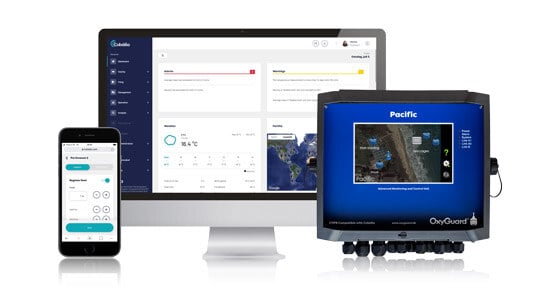
Pacific Security Update:
Important Software Update
Step-by-step guide to the Software update on the Pacific Main Unit
THIS UPDATE IS NECESSARY FOR COBÀLIA USERS, BUT ALSO BENEFITS PACIFIC SYSTEMS WITH VERSION 1,1 OR OVER
The Pacific Display will guide you through the process, and it is important to follow the steps below very carefully. The procedure will take about 15-30 minutes per unit, depending on your system.
IMPORTANT NOTE!
If the update is executed faulty, please contact us. Depending on the error, you may have to send your Pacific unit to us to finalize the update. So please follow these steps carefully.
Before you start you need:
- Your Pacific Main Unit(s)
- A PC with an online connection
- 1 x USB drive (max 8 GB)
- A camera (ex. on your phone)
Make a Backup of your System
You need to make a backup of your Pacific Main Unit (Display). When you backup, you also save your personal settings in the updated software version.
Insert a USB drive on the left side of your Pacific and proceed:
1. Press Main menu on your Pacific Touchscreen
2. Press Configuration
3. Press System
4. Press Backup/Restore
5. Press Backup configuration
6. Press Backup
- System Action: Wait for the message on the screen: “All done”
7. Press the Home button
Check for Version Number
Note the version number(s) of your Pacific Software, on all the Boards on all your Pacific units. You find the version numbers by performing this procedure on your Pacific Units:
1. Press Main menu
2. Press Configuration
3. Press Network
4. Press OxyNet
5. Press Net scanner
6. Press Start scan
7. Now you need to take note of the Version Number on each Board. We suggest to take a picture of the screen(s).
Now you are ready to start updating your Pacific Units:
STEP 1: Firmware update on your Pacific Main Unit
Collect files in the Dropbox Folder to update the Units
Go to your PC and find the files for updating the Units. Insert the USB Drive into your PC and download this Dropbox Folder: https://www.dropbox.com/sh/00q7ljc9cyz6bzu/AAAhQCOyrBqMhdqftE3E-fika?dl=0
You need to download the folder: Unit and probe updates for Pacific V1.1 + V1.2. Download all the files in the folder, but you need to save them individually, on the root on the USB-drive, as it is not possible to open a folder on your Pacific Unit.
1. Insert the USB Drive into your PC
3. Open the folder: Unit and probe updates for Pacific V1.1 + V1.2
4. Copy the latest TopMSP v4.xx file to the USB drive
5. Copy the latest Combi v4-7.xx file to the USB drive
6. Copy the latest file version for the different units you have.
Updating the Units
Remove the USB Drive from your PC (with the files from the Dropbox, on the roots of your USB drive). Insert the USB drive into your Pacific Unit, and proceed here:
1. Press Main menu
2. Press Configuration
3. Press Network
4. Press OxyNet
5. Press Net scanner
6. Press on the files for your unit (Board # xx) that is placed last on the list (Combi or other)
7. Press Firmware update
8. Press Select file
9. Choose the new version of the unit file (Combi or other), and press the check mark
10. Press Fast update
11. Press Start update
- System Action: Wait for the message on the screen: “All done”
Now you have updated one unit. To proceed to the next:
12. Press 2 x arrow back to return to the Net scanner
13. Press Start scan
14. Note that the Unit you have updated now has a new Version No.
Update all units the same way, then update the TopMSP with the TopMSP file.
STEP 2: Software Update on your Pacific Main Unit
This is for making the Software Update, and to upgrade your Pacific Main Unit to Version 1,2. (xx.xx.xx).
Find the files in the Dropbox Folder here:
https://www.dropbox.com/sh/00q7ljc9cyz6bzu/AAAhQCOyrBqMhdqftE3E-fika?dl=0
Download the Files
Work on your PC to copy the Dropbox folder to a USB drive:
1. Open the folder Pacific updates from the Dropbox Folder
2. Open the folder Pacific Main v1.2 (xx.xx.x)
3. Copy all files from this folder to the USB drive (max 8 GB)
Make a Security code
You need the Folder from Dropbox open on your PC, and follow these steps to generate the personal Security Code. One per Main Unit.
1. Open the folder Pacific updates on your PC
2. Copy the folder: Pacific - SecurityCode generator.zip to the desktop
3. Unzip the folder: Pacific - SecurityCode generator.zip
4. Open the file: KeyGen.exe
5. Press the button “USB Update”
5. Insert the Serial no. of the Main Pacific screen in the window
(See Pacific information screen, ex. OXY_00001b421b76. For more info, see the folder "How to use SecurityCode generator")
6. Insert a letter in the field "Customer Name"
7. Press “Generate Security codes”
8. Press “Save to file”
9. Save it to your USB Drive
10. Close the app
Update the Display
Take the USB drive from your PC and insert it into your Pacific Main Unit.
Work on your Pacific Unit to update the Display.
1. Press Main Menu
2. Press Configuration
3. Press System
4. Press Update program
5. Press Update System
6. Press Reboot (NOTE! if you get the warning: "SecurityCode file is missing", you need to try this procedure with another USB drive)
- System Action: The system reboots and loads the files
7. Press 5 times on X (NOTE! The order in how you press the X'es is important, and they will show up on your screen)
- System Action: The Pacific reboots
Make Restore of your personal Configuration
1. Press Main menu
2. Press Configuration
3. Press system
4. Press Backup/Restore
5. Press Restore configuration
6. Find the Backup file from Step 1 on the USB Drive
7. Press Restore
- System Action: Message on screen: “All done”
8. Press Home button
After rebooting and restoring, the Pacific software version 1,2 should be ready for use.